I Used Claude to Audit and Reorganize a Decade of Google Drive Chaos
How I used Claude to audit 642 files across a cluttered Google Drive, detect duplicates, rename ambiguous files, and reorganize everything, plus the one technical blocker that almost stopped it before it started.
Like most people, my Google Drive had become a digital junk drawer. After years of saving files without any real system — loose PDFs at the root, duplicate folders, mystery files with names that made no sense out of context — it had grown into 642 files across 16 folders with no consistent structure.
I decided to let Claude do a full audit and reorganization. Here’s how it went, including the setup steps and the one technical blocker that will catch you if you’re not expecting it.
What you need before you start
You need two things: Claude with Google Drive connected, and Google Drive Desktop in the right mode. Both are straightforward.
Step 1: Connect Google Drive to Claude
You can do this from either the web app (claude.ai) or the desktop app (downloadable from claude.ai). The steps are the same either way:
- Open Settings — in the web app it’s the menu in the bottom-left corner; in the desktop app it’s under the app menu
- Go to Integrations
- Find Google Drive and click Connect
- Sign in with your Google account and approve the permissions
Once connected, Claude can read your Drive contents directly in the conversation. You don’t need to upload anything manually or share individual files — it has access to everything in your Drive.
Step 2: Install Google Drive Desktop (if you haven’t already)
The connector gives Claude visibility into your Drive. But to actually move and reorganize files — which Claude does by writing and running a script — it needs local file system access. That requires Google Drive Desktop installed on your machine.
Download it from drive.google.com/drive/download and sign in with the same account.
Step 3: Switch Drive Desktop to Mirror mode
This is the step most people miss, and it will silently block everything if you skip it.
Drive Desktop defaults to Stream files mode. In Stream mode, it shows folder names and placeholders, but doesn’t actually download the files to your machine. From any local tool’s perspective — including the script Claude will run — the drive looks completely empty.
The fix: switch to Mirror files mode.
- Open Google Drive Desktop from your system tray or menu bar
- Click the gear icon → Preferences
- Click your account name
- Under Google Drive, select Mirror files instead of Stream files
- Click Save and wait for the sync to complete
Mirror mode downloads everything locally and creates a real folder on your machine (something like My Drive in your user directory). Once it’s synced — which takes a few minutes depending on your Drive size — Claude can read, scan, and reorganize your files through that folder.
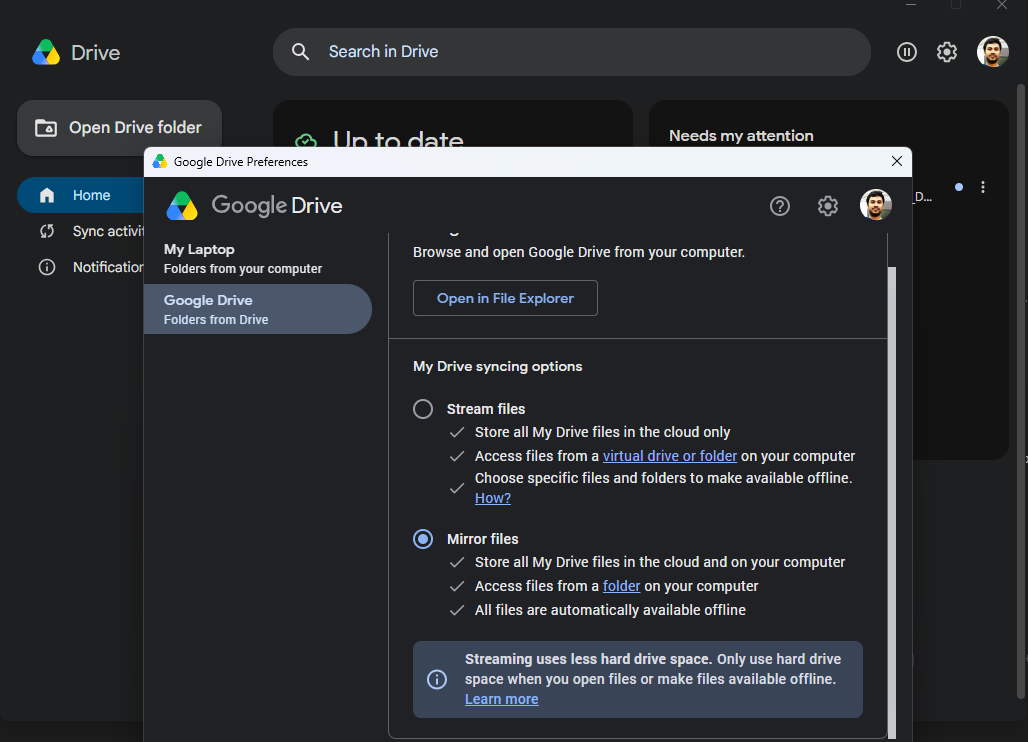
Google Drive Preferences — select Mirror files under My Drive syncing options
Change this setting before you start anything else. Stream mode is the default and gives no warning that it’s the problem.
The audit
With full access, Claude ran a complete scan and found more than I expected:
- 642 files across 16 folders, ~510MB total
- 25 exact duplicate pairs, verified by hash — health insurance cards duplicated across two separate folders, duplicate family photos, duplicate payslips, a copy of a degree certificate that existed in two places
- 15 files from 2009–2011 — old programming notes, web design assets from a long-dead project, early Google Notebook exports I’d completely forgotten about
- Ambiguously named files — documents saved with names like “Sharing File” or the literal subject line of the email they arrived in, with no indication of what they actually contained
Claude produced a full plan document with a proposed folder structure, a table of every duplicate (which to keep, which to move), and a section of flagged items needing my decision before anything moved.
The new structure
The reorganization collapsed 16 folders into 8 numbered categories:
1
2
3
4
5
6
7
8
9
My Drive/
├── 01_Important_Documents/
├── 02_Employment/
├── 03_Health_Insurance/
├── 04_Tax_Filings/
├── 05_Personal_Finance/
├── 06_Photos/
├── 07_Misc/
└── _Review_Before_Delete/
Numbered prefixes keep things sorted consistently regardless of how different apps display folder names. The _Review_Before_Delete/ folder is the safety net — nothing gets permanently deleted, just staged for me to verify and remove manually at my own pace.
What Claude actually did
After I approved the plan, Claude wrote and executed a Python script using shutil.move to reorganize all 642 files. A few things worth noting about how it handled edge cases:
Renamed ambiguous files. Files with meaningless names got renamed to reflect what they actually contained — inferred from file type, metadata, and content where readable. Two files that were different sizes (not exact duplicates, so couldn’t be safely merged) got distinct names rather than overwriting each other.
Merged duplicate folder structures. Two separate folders existed for the same general category — one for an insurance provider, one for vaccination records — with significant overlap. Claude merged them into a single folder, moved the 7 duplicate files to _Review_Before_Delete/, and kept the unique files in place.
Honoured explicit preservation instructions. I noted upfront that I wanted to keep multiple versions of a document that existed in several dated copies — not duplicates, just different snapshots over time. Claude moved all of them into the correct subfolder without consolidating them.
Total files before vs. after: 642 = 642. No data loss.
The one limitation
Removing a handful of now-empty leftover directories failed with a permission error — a known issue with how certain drive-mounted paths behave on Windows. Not a significant problem; I deleted them manually in Explorer in under a minute. Claude flagged the error clearly rather than silently skipping past it.
Was it worth it?
The whole audit, plan, and execution happened in a single session. Duplicate detection across 642 files, with hash verification, would have taken me hours to do manually. Identifying the ambiguously named files and renaming them correctly required actually reading them, which Claude did and surfaced clearly in the plan.
The _Review_Before_Delete/ folder had 54 items when the session ended — old ebooks I’ll never read, duplicate documents, redundant photos. Nothing was decided for me. I cleared them out over the next few days when I had time.
The main thing I’d pass on: switch to Mirror mode before you start. Everything else is straightforward. Stream mode is the invisible wall that stops any local tool from helping you, and it’s on by default.